
MOBILETrak Cloud Version 2.9.10
IMPROVEMENTS
Submit Charge-Out / Submit Return Button Moved: To improve the user experience of charge-outs and returns, users within the Material Charge-Out and Material Return modules will now be presented with the blue “Submit” button ABOVE (On Mobile device view) or on the RIGHT (On Desktop view) of the orange “Reset” button.
Affected Transactions:
Material Charge-Out
Material Return


Users Returned to Item Number Field After Charging/Returning: To improve the user experience of charge-outs and returns, users within the Material Charge-Out and Material Return modules will now be taken back to the “Item Number” field after submitting. This applies to both Desktop and Mobile device users.
Affected Transactions:
Material Charge-Out
Material Return
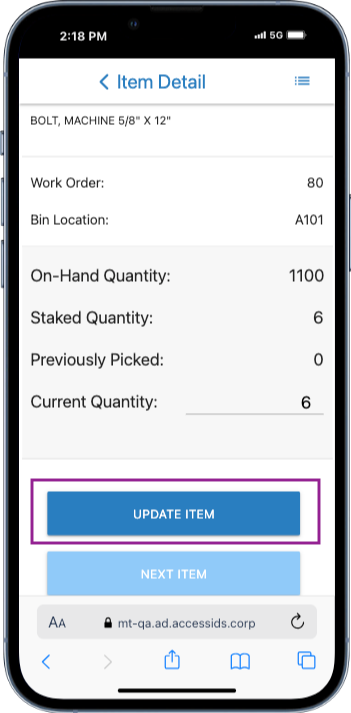
Work Order “Update Item” Button Moved for “Auto-Next” Users: To improve the user experience of the Work Order module for users with the “Auto-Next” setting option turned ON, the blue “Update Item” button was moved to appear ABOVE (On Mobile device view) or on the RIGHT (On Desktop view) of the light blue “Next Item” button.
Affected Transactions:
Work Orders

Auto-Search Setting Upgraded: Users can now enable or disable automatic searching for both top level, and secondary level fields throughout the program. If set to “ON” the value input will be automatically searched a few seconds after the user has typed information into the field. If set to “OFF” users will have to hit enter when manually inputting a value before the program will search for a result. This functionality is an expansion of the setting which rolled out in February of 2024. These changes extend the setting to apply to fields such as the “Item Number” fields within each module.
Certain fields are “validation-only” and will continue to automatically validate after a value has been entered. These include: Account Number, Division, Department, and Activity Code
Affected Transactions:
Work Order
Receiving
Material Charge-Out
Material Return
Batches
Physical Inventory
Item Transfer
Transfer Request
Requisitions
SEI Search
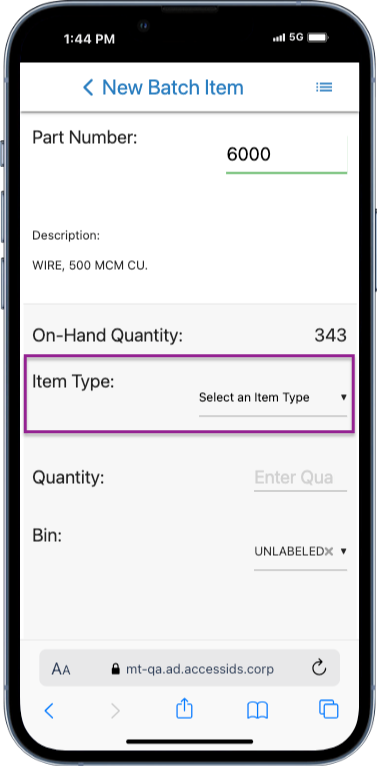
iXp - Item Type Added: iXp users will now see the Item Type of any items staked for a Work Order in the MOBILETrak interface. Additionally, items added to a Work Order, or items submitted through Inventory Material Charge-Out will require the user to select an appropriate Item Type before adding or charging the item. Item Types are editable up until the charge is submitted to iXp.
Affected Transactions:
Work Orders
Material Charge-Out
Batch Charge-Out


FIXES
Item Lists Sort Issue Resolved: The sort by Item Number functionality has been updated throughout MOBILETrak to sort item Numbers that begin with letters appearing at top in ascending order A-Z, followed by Item numbers that begin with numeric characters appearing below those, sorted from 0-9 ascending. Item Numbers that have a combination of both Letters & Numbers will sort based on the first character of the Item Number.

Affected Transactions:
Work Orders
Receiving
Batch Charge-Out
Transfer Issue
Organizational Settings “Reset to Defaults” Issue Resolved: Users previously experiencing a settings reset due to the browser’s local storage clearing out were seeing their settings reset to the MOBILETrak “new user” defaults rather than their Organization’s specifically chosen defaults. This issue is now resolved.
Affected Transactions:
Settings
iXp - Added Items in Work Order Now Have “Pending" Flags Until Submitted: iXp users will now see an orange “pending” flag on any items added to the Work Order that were not originally staked. The pending flag was previously showing only on staked items with changes. This change ensures see the indication on any items that have changes pending that have not yet been sent to iXp.
Affected Transactions:
Work Orders